Record a payment
Log rent or another payment you received so the balance stays right.
When a tenant pays by e-transfer, cheque or cash, record it here and the rent roll, the ledger and your reports all stay up to date. OneRental doesn't collect money for you. It keeps the record.
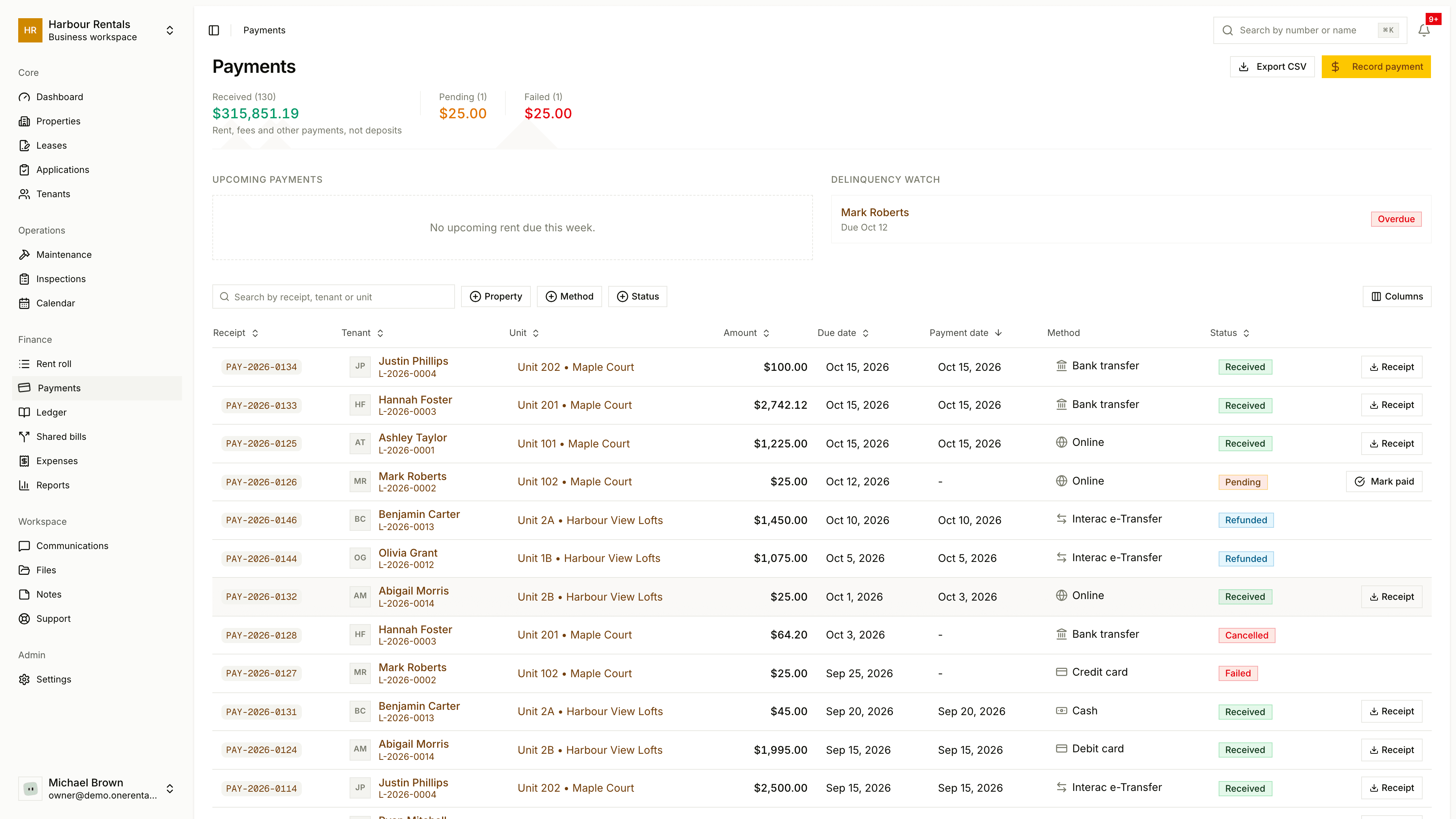
Go to Payments and click Record Payment.
Pick the Lease. The list shows the tenant, the unit and the rent.
Enter the Amount and the Payment Date, and choose the Method (cash, cheque, bank transfer, Interac e-Transfer, credit card, debit card, online or other).
Choose a Type: Rent, Late Fee, Utility, Maintenance or Other. Add a Reference # or Description if you want, then click Record Payment.
There's an optional Rent Period field. Pick a month and the payment goes to that month; leave it on Auto-assign and we'll apply it for you.
You can also record a payment from a lease's Ledger tab, where you choose which charges it covers, or from the ... menu on a row of the rent roll.
After you record it
Part payments are fine. The month shows as Partial until the rest comes in.
If a payment's still marked Pending, it has a Mark Paid button, which marks it paid and sets the payment date to today.
Every paid row has a Receipt button you can open and share.