Manage team members
Invite a bookkeeper or leasing agent, change what they can do, or take their access away.
If someone helps you run your rentals, add them to your workspace so you're both working in the same records. Only the workspace owner manages the team, under Settings, Team.
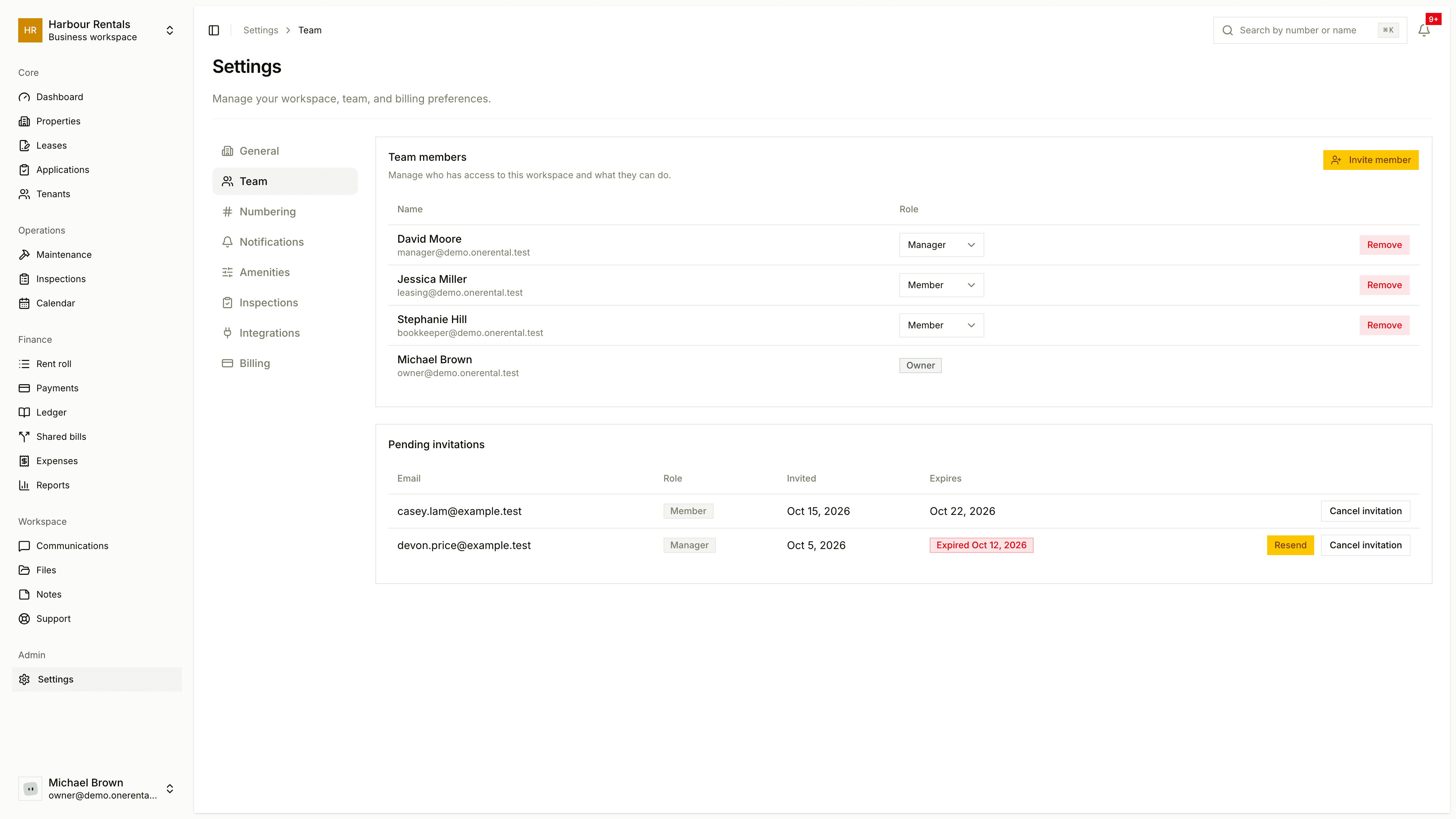
Invite someone
In Settings, open Team and click Invite member.
Type their email and choose a Role: Manager or Member. Not sure which? See Roles and permissions.
Click Send invite.
If they already have an account, they're added straight away and we let them know by email. If not, they get an invitation and join when they sign up with that email.
Invitations that haven't been accepted yet sit under Pending invitations, with the date they were sent and when they expire (after 7 days). Click Cancel to withdraw one.
Change a role or remove someone
To change a role, pick Manager or Member from the dropdown next to their name. It takes effect right away.
To remove someone, click Remove and confirm. Their access ends immediately.
You'll see your own name with an Owner badge and no dropdown, because the owner's role can't be changed here.