Notification settings
Choose which notices your workspace sends to tenants and to your team, and by which channel.
Not every landlord wants every automatic email. Here you decide, notice by notice, what goes out. Only the workspace owner sees this page.
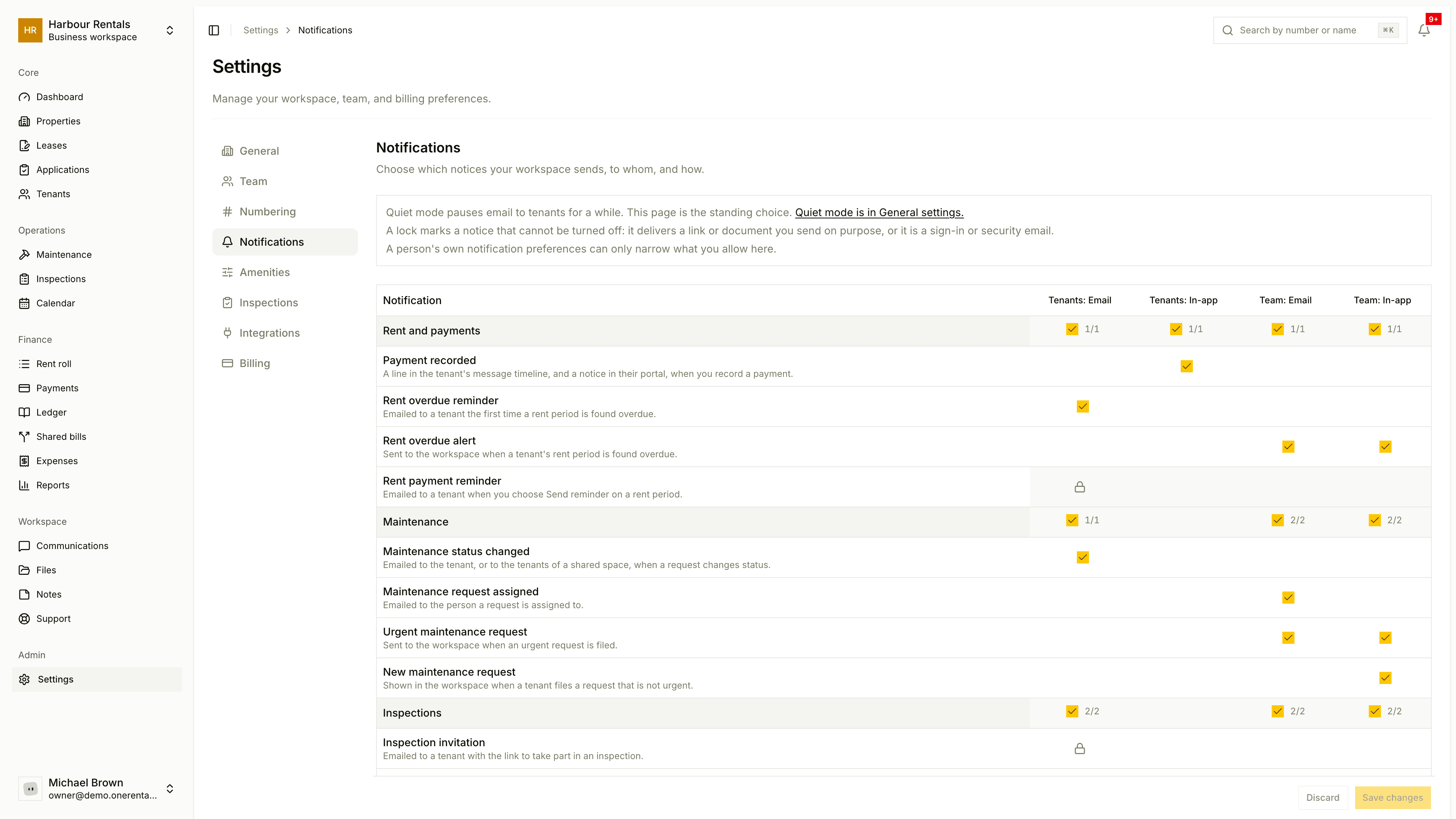
Change what's sent
Open Settings, then Notifications.
Find the notice. They're grouped under headings like Rent and payments, Maintenance, Inspections, Leases and signing, Applications, Portal and invitations, Messages, and Account and security.
Tick or untick it in the Tenants: Email, Tenants: In-app, Team: Email and Team: In-app columns. Ticking a heading row switches the whole group.
Click Save changes, or Discard to throw away what you changed.
A notice that's switched off isn't created at all.
The lock icon
A lock means that notice can't be turned off. These are notices you send on purpose (a signing link, a reminder you chose to send) and sign-in or security emails.
How this fits with other settings
This page is your standing choice. To pause tenant email for a little while, use quiet mode instead.
Each person can also set their own preferences, but those can only narrow what you allow here. See Your notification emails.