Two-factor authentication
Add a code from your phone to sign-in so a stolen password isn't enough.
Your account holds tenant details and money records, so it's worth protecting. With two-factor turned on, you enter a code from your phone after your password, and anyone who gets hold of your password still can't get in.
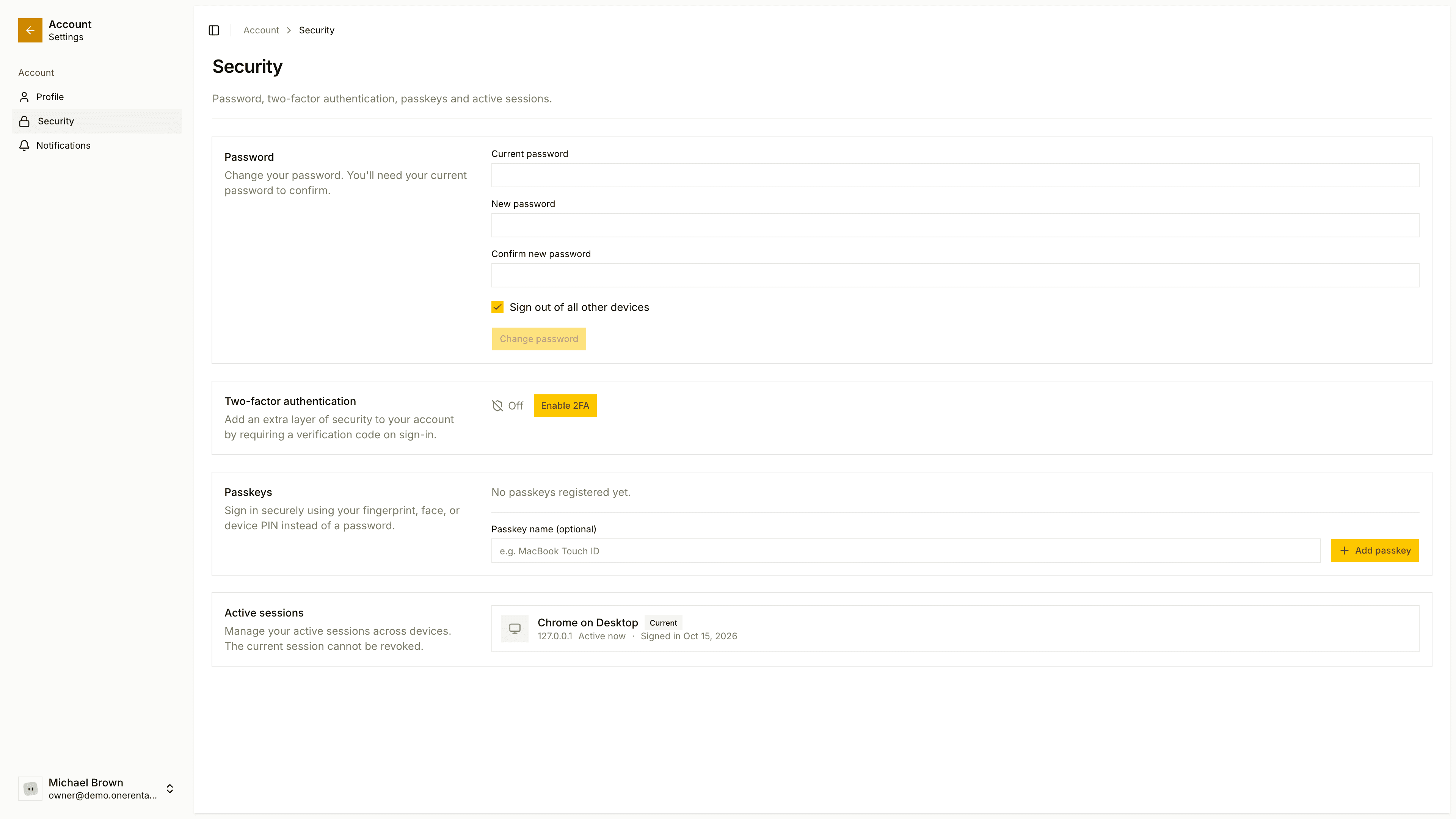
Turn it on
Open your account menu, go to Security and find Two-factor authentication. Click Enable 2FA.
Enter your password and continue.
Scan the QR code with an authenticator app (Google Authenticator, Authy and 1Password all work well). Type the 6-digit code under Verification Code and click Verify & Enable.
Copy your backup codes somewhere safe, then click Done.
Each backup code works once, and they're how you get back in if you lose your phone or your authenticator app. Keep them somewhere other than your phone.
Turn it off
On the same card, choose to disable two-factor and enter your password to confirm.
Switching phones? Set up the new one before you turn two-factor off, so your account is never left unprotected.
Passkeys are another safe way to sign in. See Passkeys and sign-in security.