Passkeys and sign-in security
Change your password, add a passkey, link a social account and sign out other devices.
A few minutes on the Security page of your account goes a long way toward keeping it safe.
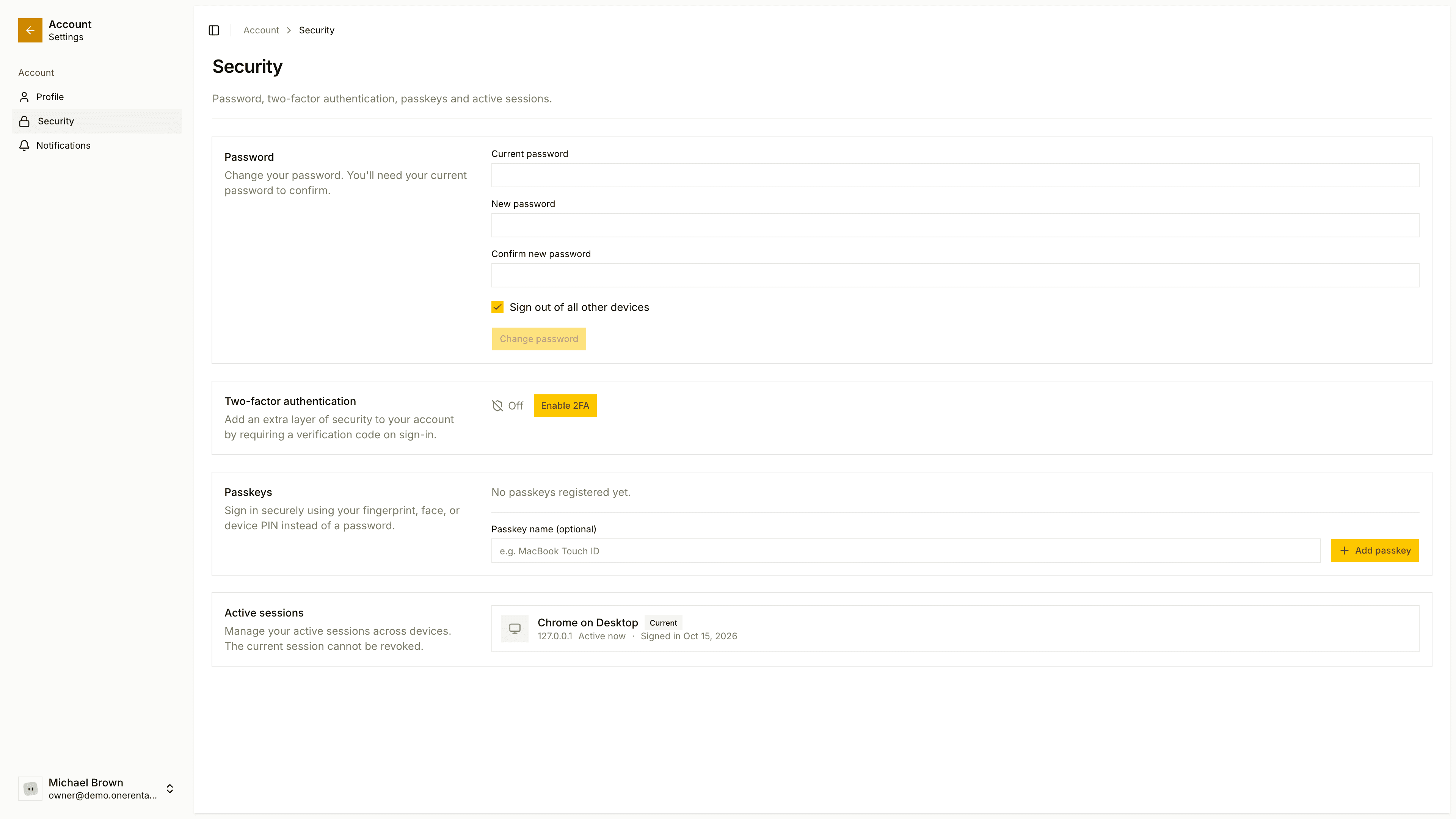
Change your password
Under Password, enter your Current password, your New password and Confirm new password, then click Change password. It needs to be at least 8 characters.
Add a passkey
A passkey lets you sign in with your fingerprint, face or device PIN instead of a password.
Under Passkeys, add a passkey. You can give it a name, which helps you tell your devices apart.
Follow your device's prompt.
You can rename or delete a passkey from the same list. If there's no Passkeys card at all, passkeys aren't turned on for your service.
Linked accounts
If you can sign in with Google, Apple or Microsoft, Linked accounts lets you connect one for quicker sign-in. You can't unlink your only linked account.
Active sessions
Active sessions lists the devices signed in to your account. Revoke any one of them, or click Sign out of all other sessions. The device you're on stays signed in.
If you lose a laptop or phone, sign out of all other sessions first, then change your password.
For an extra step on top of all this, turn on two-factor authentication.