Create a lease
Draft a lease for a home or a room in six steps.
The lease wizard walks you through a new lease step by step, and you can save a draft and come back to it whenever you like.
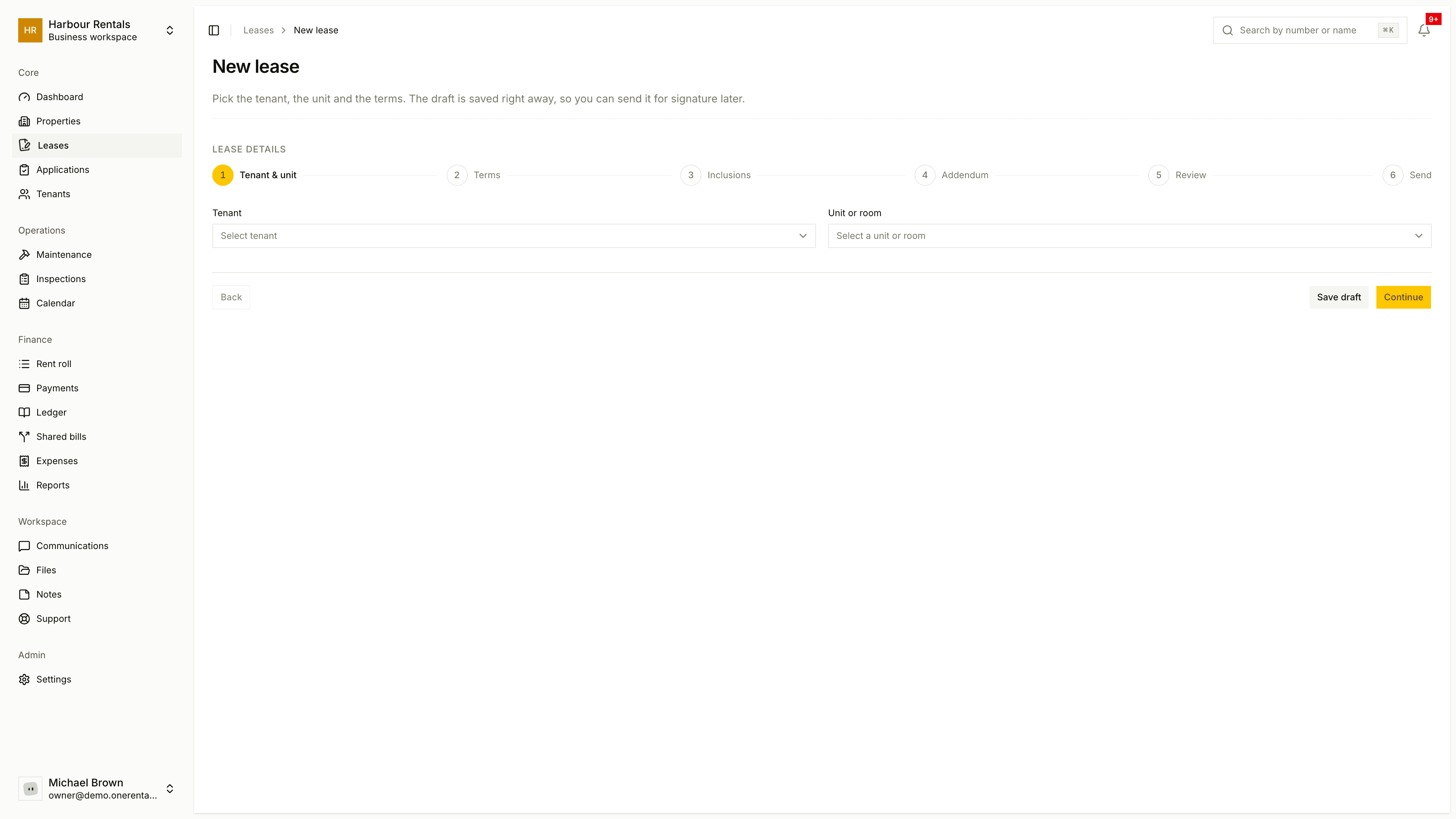
Open Leases and click Start New Lease.
Tenant & Unit. Choose the tenant and the home. Rooms are listed under their dwelling, like "Room 2, Main house". Homes that aren't available don't appear.
Terms. Set the start and end dates, or tick month to month. Then enter the monthly rent, security deposit, payment due day and payment frequency. If pets are allowed, add the pet damage deposit. You can also record the day the tenant moved in.
Inclusions. What the rent includes, the pets and smoking policy and the devices in the home all come from the unit. Edit the lines for this lease if you need to. Devices are changed on the unit, not here.
Addendum. If you want, pick a saved addendum and add terms for this lease only. See Custom addendum.
Review, then Send. Choose the signing order and whether the owner has to sign too, then click Save lease.
Click Save draft at any point to pick it up later. Nothing's final until the lease is signed and active. To collect signatures, see Send a lease for e-signing.
Some leases need a little extra:
- A room where the owner lives and shares the kitchen or a bathroom. The form shows a notice and asks you to acknowledge it. It won't stop you saving the lease.
- A fixed term with a set end date. You choose what happens when it ends. See When the fixed term ends.
- A property in BC. The agreement is the standard form. See The lease agreement.
What the statuses mean
| Status | Meaning |
|---|---|
| Draft | Created; signatures may still be outstanding |
| Active | Everyone's signed and the tenancy is under way |
| Renewed | A renewal has taken over |
| Expired | The term ended without a renewal |
| Terminated | The tenancy was ended |
When a fixed-term lease rolls over to month to month, it's still the same lease. The lease page shows the day it changed.