List a unit for rent
Put a vacant unit in front of renters, add photos and close the listing when it's rented.
When a unit's coming free, list it to get it in front of renters and start taking applications.
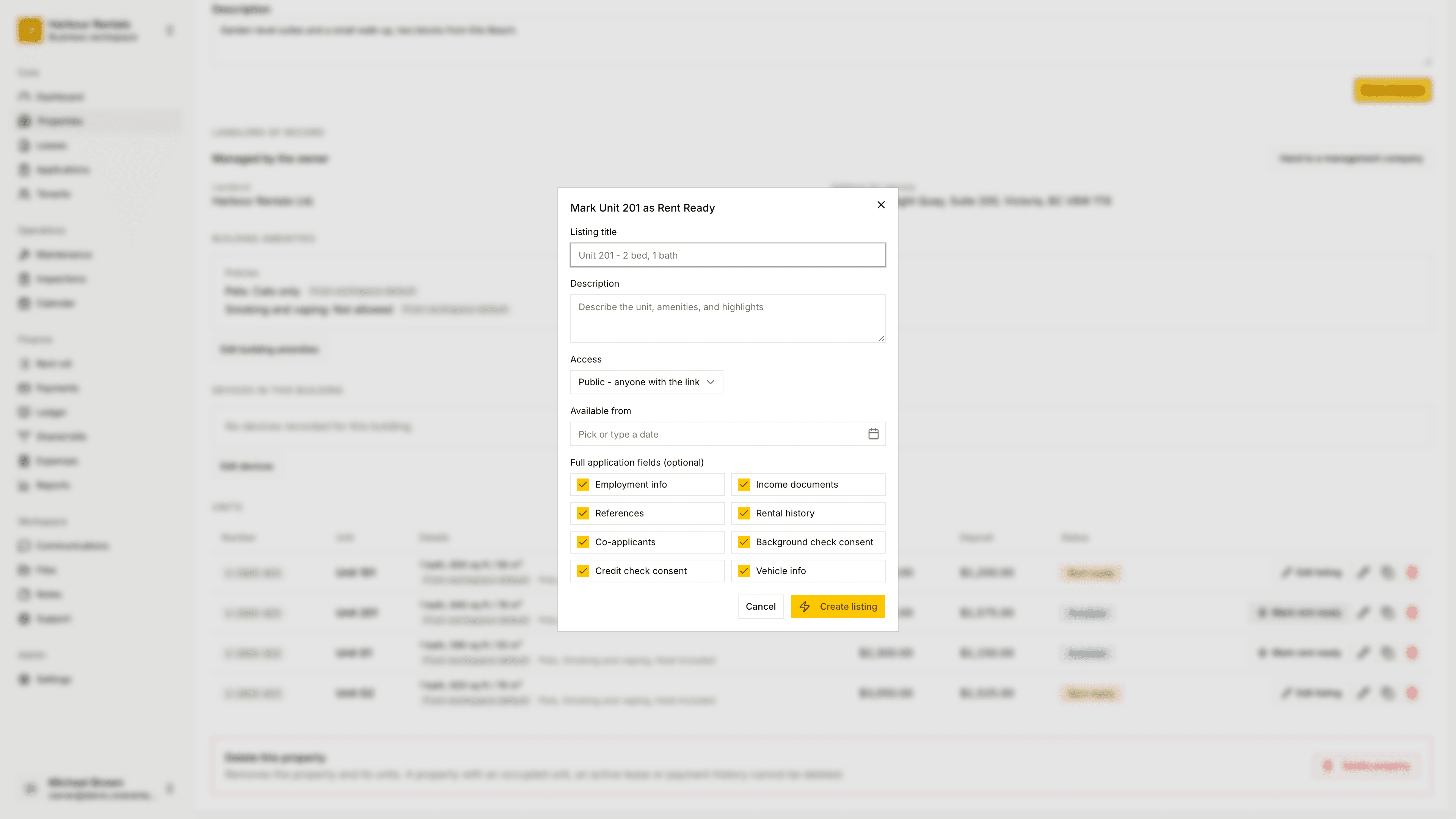
Create the listing
Open the property. On the unit's row, click Mark rent ready. You'll see this button on units that are Available.
Enter a Listing title and a Description. Tell renters what makes the place good: the light, the location, what's nearby.
Under Access, choose who can see it, and set Available from if the unit isn't free today. See Public, private and invite-only listings.
Under Full application fields, tick what you'll want to ask applicants for later: employment info, income documents, references, rental history, co-applicants, background check consent, credit check consent and vehicle info. They all start ticked, so untick whatever you don't need.
Click Create Listing. You'll get a link you can copy and share straight away.
Add photos and make changes
Once a unit is listed, its button changes to Edit Listing. From there you can:
- Change the title, description, access or available date, then click Save changes.
- Add pictures under Photos: click Add photos and pick JPEG, PNG or WebP files. To remove one, hover over it and click the X.
- Copy the listing link again with the copy button at the top.
When it's rented
- Mark as filled means the unit's rented. It marks the unit occupied and closes the listing.
- Remove listing takes the listing down. The unit goes back to available and no new applications come in.
Applications land on the Applications board.
Renting rooms in a shared house? You list a room the same way, with its own rent and deposit. When a room's tenancy ends, its row offers List this room again.