Amenities and devices
Tell renters what a unit includes and disclose any alarms or cameras.
Renters decide fast, so spell out what they get, from the laundry to the parking, and be upfront about any alarms or cameras. Whatever you fill in here shows on your listing and your lease.
Amenities
When you add or edit a unit, pick its amenities: appliances, laundry, parking, storage, utilities included, outdoor space, pets and smoking policy, and more.
Each amenity has a Public toggle that decides whether it shows on the listing. If something's missing from the list, click Add your own and give it a name, a category and an icon.
Things that apply to the whole building go on the property page under Building amenities. Every unit picks them up, marked From property, unless the unit sets its own. Whatever you set on a unit wins for that unit only.
Devices
Smoke alarms, carbon monoxide alarms, cameras and smart locks get their own section. Record where each one is and what it does.
Devices are always public: they show on the listing, the lease and the move-in report. A camera on a whole unit can only be at the entrance or outside. If you add a device partway through a tenancy, the tenants on that lease are told.
Your workspace settings
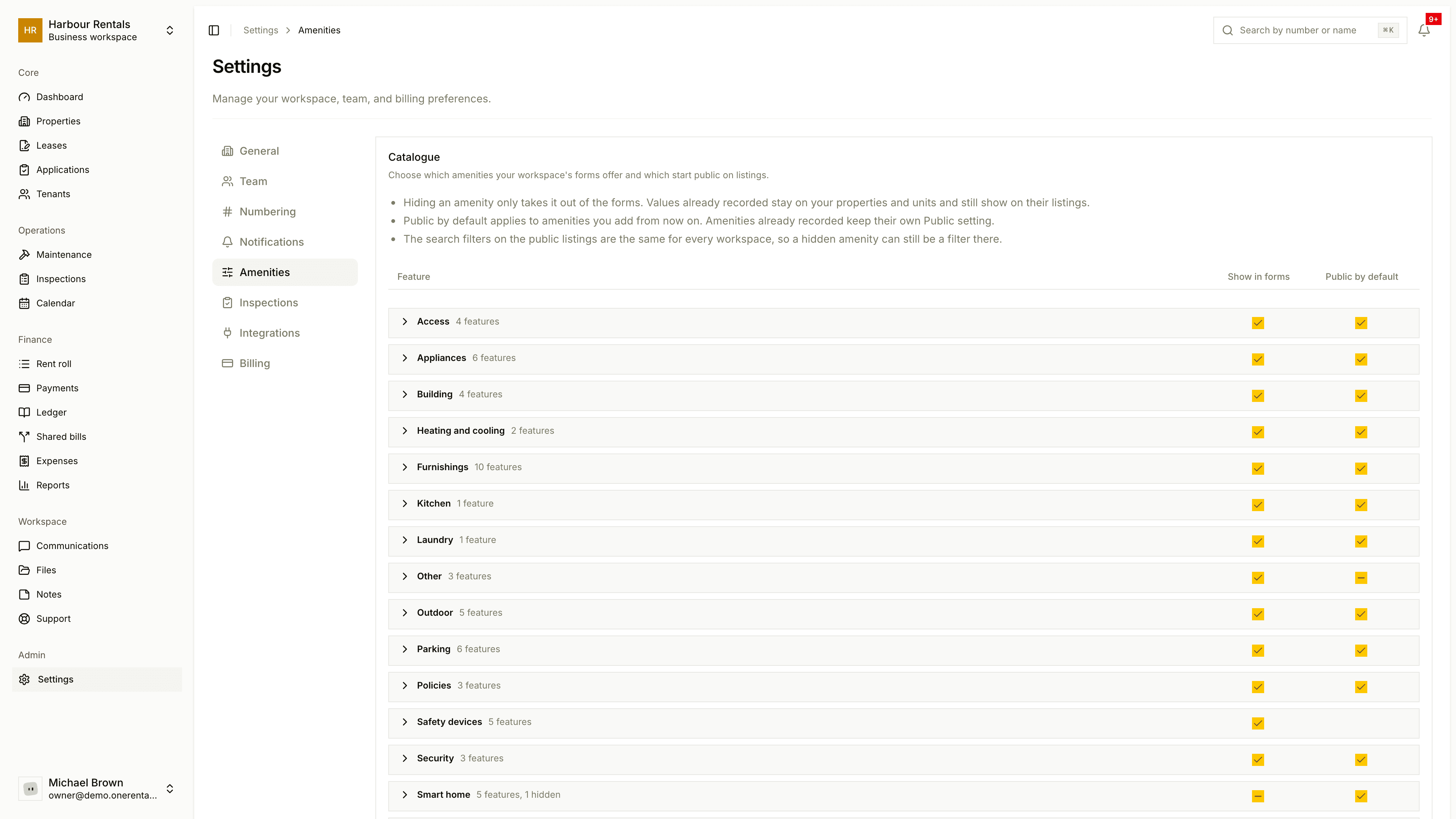
Under Settings, Amenities you can:
- Hide amenities you never use, and choose which ones are public by default.
- Set workspace defaults, like your usual pets policy, that every unit starts from.
- Save named sets, like "Furnished suite", and apply one to several units at once.
Hiding an amenity only takes it out of the pickers. Anything already saved on a unit still shows.