The applications board
See every application at a glance and move it along.
The board shows who's applied and where each person stands, in columns from first contact to decision.
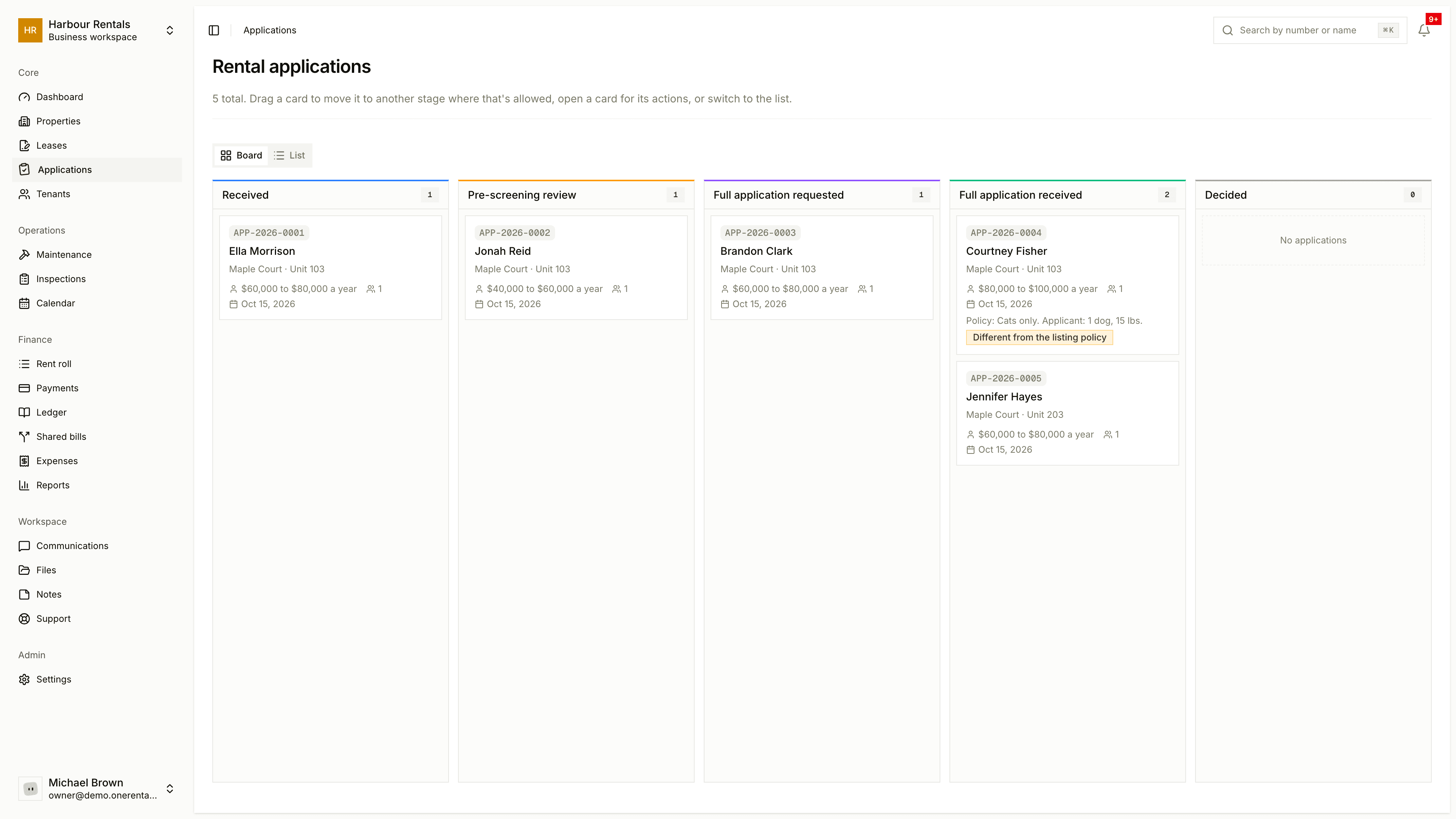
How an application moves
Open Applications in the sidebar. Each card is one applicant, with their application number, the unit and when they applied.
| Column | What it means |
|---|---|
| Received | Someone applied on your listing |
| Pre-screening Review | You're looking at their first answers |
| Full application requested | You've asked them for the full application |
| Full application received | They've sent it back |
| Decided | Approved or declined |
Working the board
Click a card to open a side panel with the applicant's details and the next step. You can also drag a card forward, from Received to Pre-screening Review, or from Pre-screening Review to Full application requested.
If you only want to see one property's applicants, open the property and click Applications at the top.
A card shows a small note when the applicant's pets don't match the unit's pet policy. More on that in Review an application.
Applicants can follow their own application's status from their account. And if nothing's coming in, check the unit is listed: applications only arrive for listed units. See List a unit for rent.