Assign and track requests
Give a repair to someone, move it along and close it.
Once a request is in, decide who's handling it and keep an eye on it until it's done. Go to Maintenance, then View Requests.
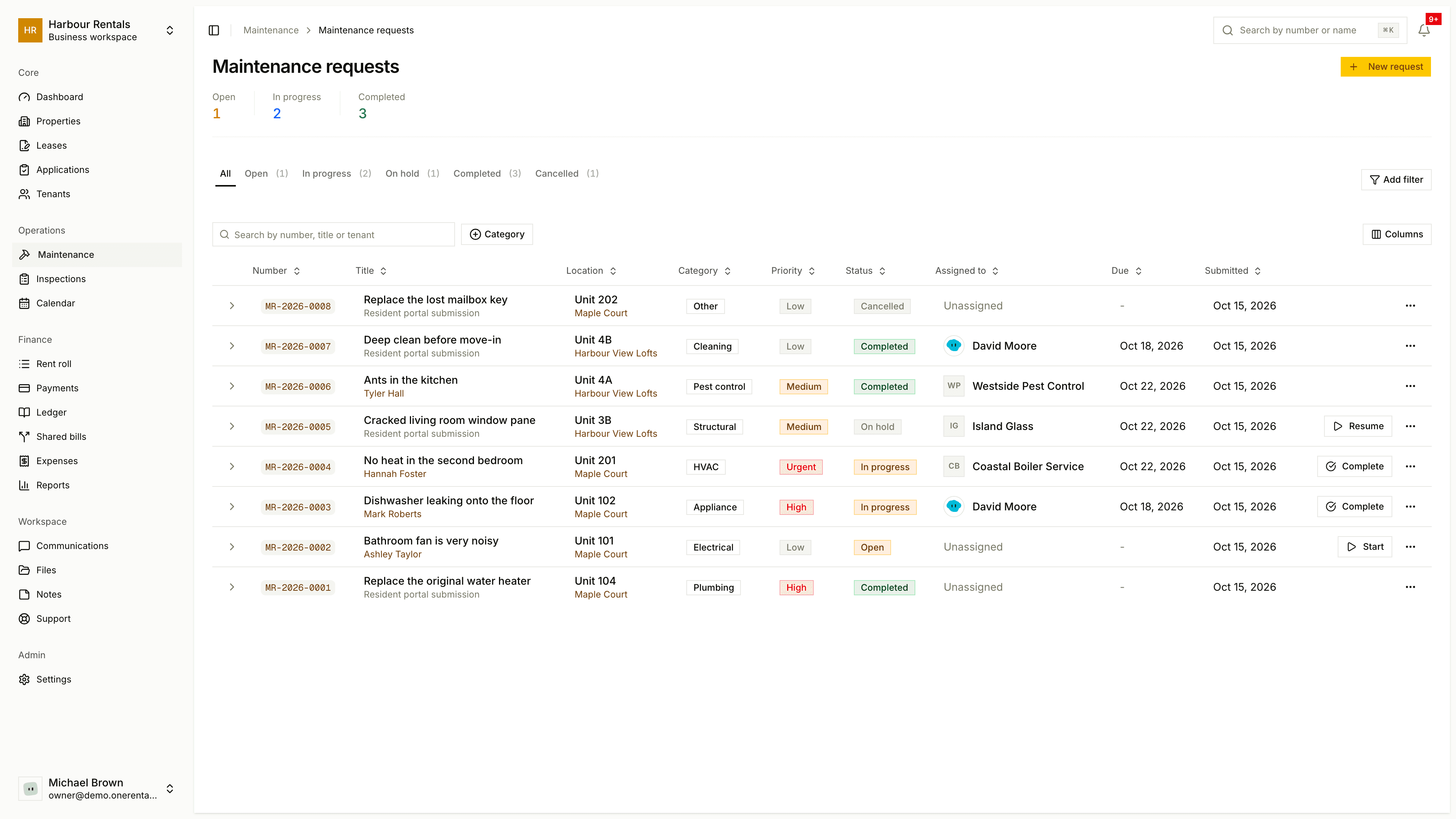
Find a request
Use the tabs (All, Open, In Progress, On Hold, Completed) or Add filter to narrow things down by property, unit or space, urgency or assignee. Each row shows the category, priority, status, who it's assigned to and the due date.
Assign it
Click Assign on the request.
Choose Team member or Vendor. For a team member, pick the Assignee. For a vendor, type the Vendor or contractor name.
Add a Due date and click Assign.
A team member gets an email. A vendor is only recorded by name, so no account is created and nobody's emailed.
Assigning doesn't change the status. Use Start for that.
Move it along
- Start moves an open request to in progress. You can note who's doing the work.
- Hold pauses it, and Resume picks it back up.
- Complete marks it done once you've checked the work.
- History shows every status change.
Your tenant gets an email each time the status changes, unless quiet mode is on.
When the bill comes in, click Record cost. See Record an expense against a job.