A tour of your dashboard
See what each part of the dashboard tells you and where to click next.
The dashboard is the first thing you see when you sign in, and it's built around one question: what needs my attention today?
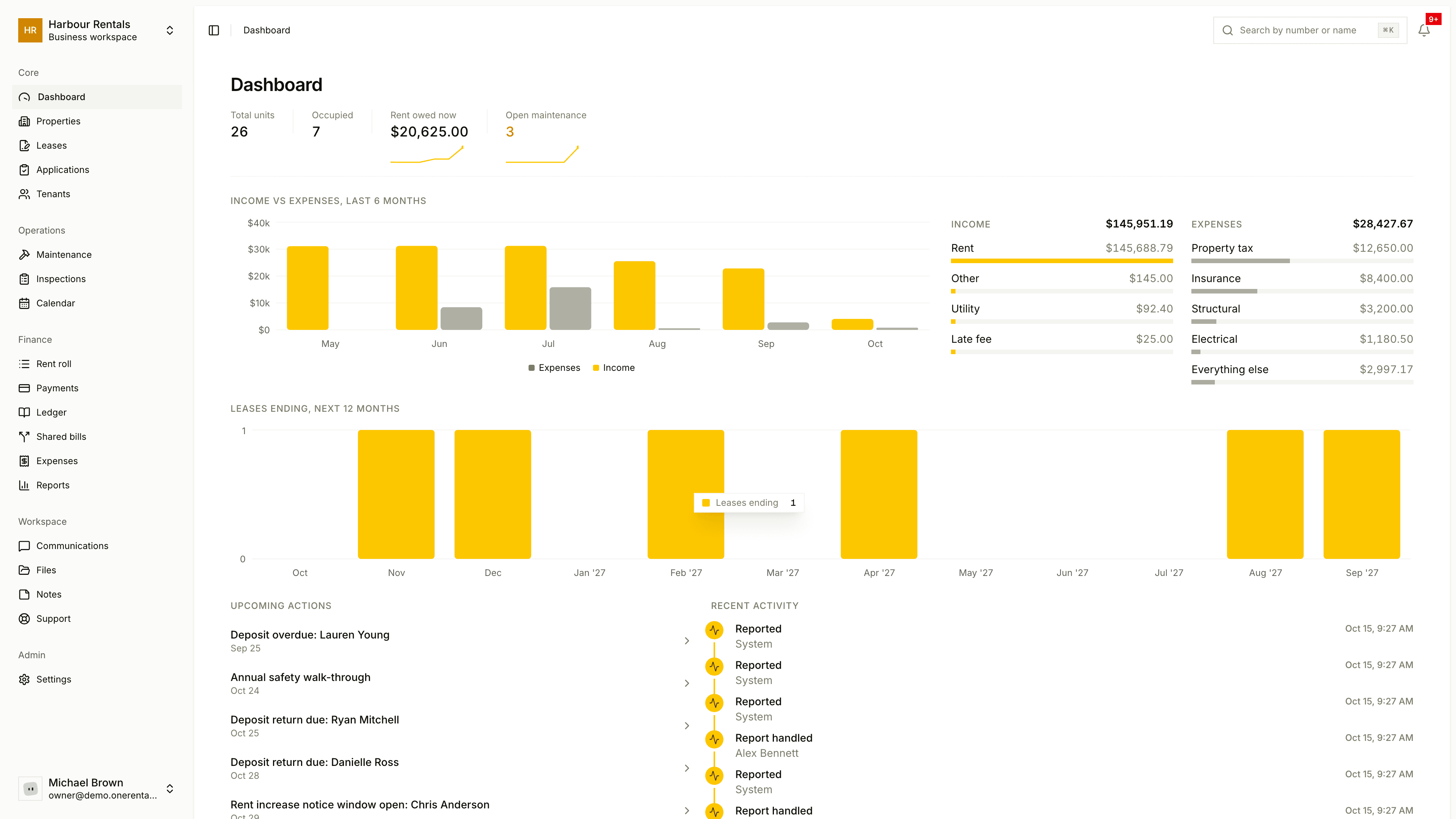
From top to bottom
- The numbers bar. Four quick figures: Total units, Occupied, Outstanding balance and Open maintenance.
- Get started. In a new workspace you'll also see a short checklist above the charts: add a property, add units, invite tenants. Each step has a button that takes you straight there. Click the X to hide it, or finish every step and it goes away on its own.
- Income vs expenses, last 6 months. How the money's going, with totals broken down by type.
- Leases ending, next 12 months. Which leases end soon, so you can plan renewals early.
- Upcoming Actions. Lease renewals, deposit returns, inspections and rent increase windows show up here as they come due.
- Recent Activity. What's happened lately in your workspace.
- Recent Payments. The latest rent and deposit payments you've recorded.
Each section loads on its own, so if one says it's unavailable, the rest still work. Use that section's reload button to try again.
Empty sections are normal in a new workspace. They fill in as you add properties, leases and payments. Everything else (Properties, Leases, Applications, Tenants, Maintenance, Inspections and more) is in the sidebar on the left.